TL;DR: A drive-thru AI deployment can handle the conversation well and still stumble in the kitchen. A ticket that arrives late, missing modifiers, or not at all breaks the guest experience. For IT leaders evaluating AI Order Taker deployments, the kitchen display system is a key integration checkpoint, so test what reaches the kitchen before store one goes live.
Introduction
A drive-thru AI deployment can handle the conversation well and still stumble in the kitchen. A ticket that arrives late, missing modifiers, or not at all breaks the guest experience, however well the AI handled the conversation.
For IT leaders evaluating AI Order Taker deployments, the kitchen display system is a key integration checkpoint. If your KDS is not receiving complete, correctly formatted tickets when it should, the deployment is not doing its job.
This guide covers what correct KDS behavior looks like with an AI Order Taker in the loop: modifiers, mid-order edits, 86’d items, dual-lane sequencing, network interruptions, and the pre-deployment checklist your team should run before store one goes live.
Why the Kitchen Display Is Where AI Deployments Are Won or Lost
The demo tests the conversation. The kitchen tests the integration.
AI drive-thru evaluations often focus on what happens at the speaker: how naturally the AI handles a complex order, how cleanly it recovers from background noise. Those things matter. The real operational test happens in the kitchen, at the kitchen display screen.
A garbled ticket, a late ticket, or no ticket at all means the guest experience fails, regardless of how smooth the ordering conversation was. A crew member staring at a blank screen can’t start prep. A missing modifier means a remade order. A ticket that arrives after the car does means a car sitting at the window.
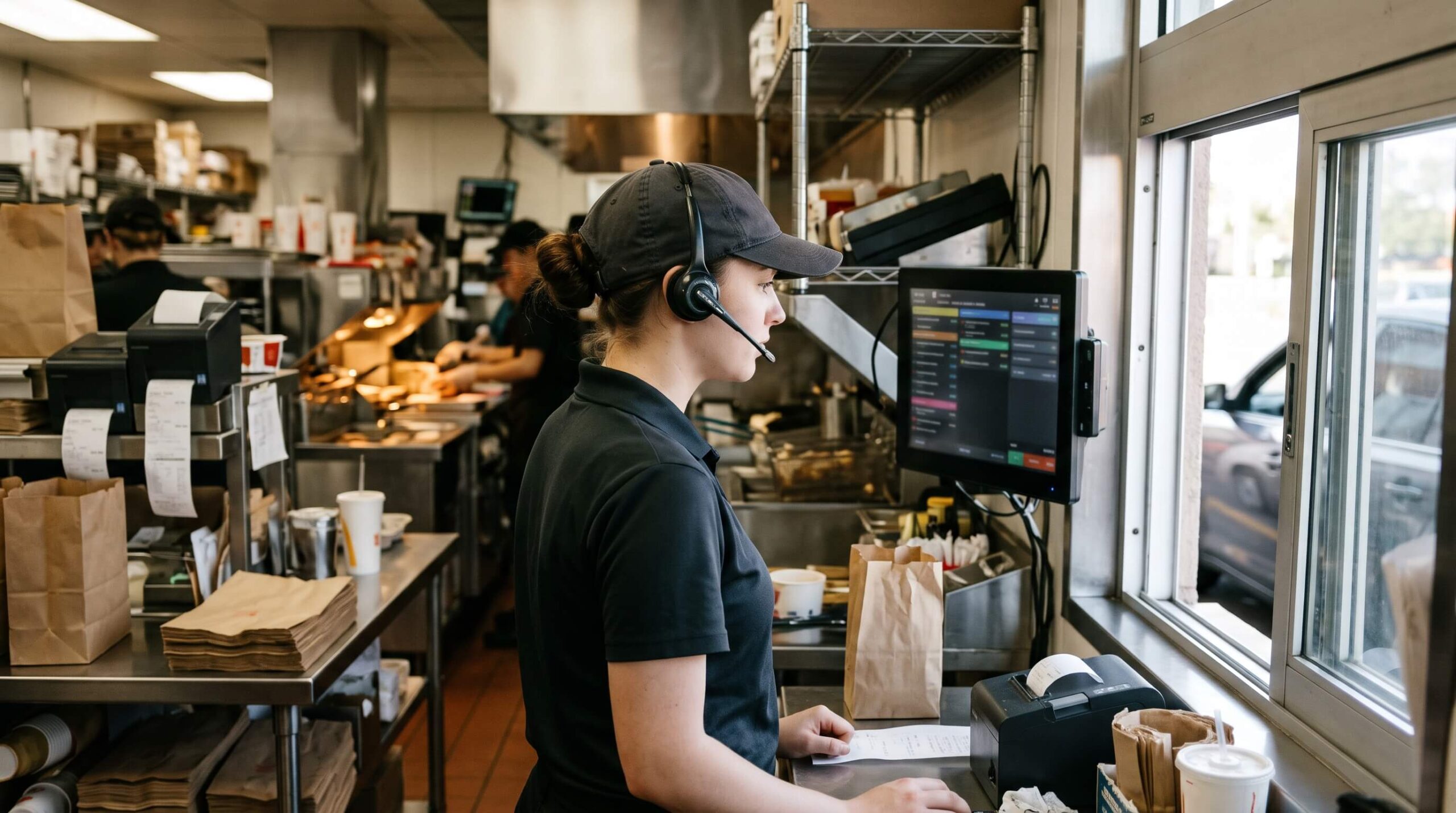
A kitchen display system (KDS) is a digital screen that shows kitchen staff the items, modifiers, and timing information they need to prepare each order, replacing or supplementing paper ticket systems. It’s where orders become food.
This article covers the kitchen side of that integration: timing, modifiers, edits, outages, and dual-lane sequencing. For the order-injection side and POS platform compatibility, see the POS Integration glossary. Both sides have to work. This is the one that’s harder to test in a demo room.
What Does Correct KDS Behavior Look Like With AI in the Loop?
Many AI order-taking demos are judged on conversation quality. The real test is what hits the kitchen screen.
Four behaviors separate a well-integrated AI-to-KDS flow from one that quietly creates problems. If your vendor can’t demonstrate all four before go-live, that’s a gap worth closing.
1. Timely tickets
At Hi Auto, orders reach the kitchen display item by item as the guest speaks. That currently works with QSR Automations (CrunchTime) only, so confirm how your own kitchen display system connects. Test how quickly each item appears on the KDS, and agree an acceptable delay with your vendors in writing.
Why does that matter? A late ticket extends transaction time, the total duration from first interaction to food in hand. Every second the kitchen waits is a second the car doesn’t move.
2. Full itemization with modifiers and pricing
Every ticket that reaches the KDS must carry complete item names, all modifiers, and correct pricing. If the crew sees “Burger” instead of “Burger, no onion, add jalapeño, large combo,” someone makes the wrong thing. Full itemization is the baseline.
3. Clean handling of mid-order changes
Guests change their minds. When a guest changes their order mid-conversation, the KDS ticket must show the final order. A stale ticket the crew has already acted on means wasted food and a longer wait. Test that the ticket always matches what the guest finally agreed to.
4. Menu and price changes
When corporate changes a price or launches a new LTO, the KDS, the POS and the AI all need to carry the change. At Hi Auto, the team sets up new menu items and complex changes such as new LTOs, and simpler changes go through POS automation. Whichever vendor you choose, agree in writing who makes each type of change and how it reaches the kitchen display.
When these four behaviors work together, something shifts in the kitchen.
That’s the crew moving from order-taking mode into fulfillment mode. That’s what correct KDS integration actually feels like.
The guest-facing complement to the KDS is the order confirmation board (OCB). While the KDS shows the kitchen what to make, the OCB shows the guest the items the AI has taken. Hi Auto is vendor-agnostic and works with most existing confirmation screens. Both screens need to be right.
How Should Modifiers, Substitutions, and Mid-Order Edits Display?
Drive-thru orders are rarely simple. Modifier handling is the core of what the kitchen display needs to get right, every time, so your team cannot leave it to be revisited after launch.
There are three distinct problems to solve before go-live.
Problem 1: Display format must match crew training.
If your crew is trained to scan for ‘NO PCK’ and the KDS ticket shows ‘Pickles: removed,’ that moment of hesitation happens on every single order. Multiply that across a lunch rush and you’ve got a real throughput problem. The AI vendor and the KDS vendor must agree on the display schema before the first store goes live. The terminology on the ticket must match your training materials, not the other way around.
Problem 2: Modifiers must be scoped to the right item. When a guest orders two items and says ‘no onions,’ the system can’t default to the first or last item in the queue. It has to apply the modifier to the correct item based on conversational context. The right modifier on the wrong item is still a wrong order.
Problem 3: Changes must be reflected on the ticket. Guests change their minds. ‘Actually, make that a large.’ ‘Cancel the apple pie.’ Whatever the guest changed, the KDS ticket must show the final order, with no stale version left on screen. A stale ticket means food gets made wrong, or made twice.
Here’s a concrete example. A guest orders a combo, then says: ‘no pickles, extra cheese, and make the drink a Diet Coke.’ All three modifiers must appear on the KDS ticket, correctly scoped to the right items, before the crew touches the food.
Orders should inject with full itemization, modifiers, and pricing. Substitutions and add-ons must be understood and processed accurately. That’s the standard to test against.
What Happens When an Item Runs Out?
Here’s a failure mode that rarely shows up in demos but happens in real stores every shift: the AI accepts an order for an item the kitchen ran out of an hour ago. The guest drives to the window, finds out, and the crew has to fix it under pressure while the line backs up. That’s a guest experience failure and a throughput problem at once.
Correct outage management is a two-part requirement.
First, when a crew member marks an item as 86’d, the AI must stop offering it quickly. At Hi Auto, within a few minutes of an item being marked out of stock in the POS, the AI stops offering it. That is live on Oracle MICROS Simphony and PAR Brink only, not on NCR Aloha or any other POS, so confirm how your own POS connects. Second, any order that still includes that item must be blocked before it ever reaches the kitchen display system. The KDS should never receive an item the kitchen can’t make.
The item-outage glossary covers the full taxonomy worth knowing: item-level, category-level, daypart-level, and location-level outages each behave differently and need to be tested separately.
During pre-deployment, measure outage propagation speed as a concrete number. How long passes between a crew member marking an item 86’d and the AI no longer offering it? That lag is testable. It should be on your checklist.
Dual Lanes, Order Sequencing, and Bump Flow
A double-lane drive-thru doubles the ways your KDS integration can break.
When two lanes run simultaneously, three things have to work correctly on the kitchen display: lane identification, sequencing, and bump flow. Get any one wrong, and your window crew is guessing which bag belongs to which car.
Lane identification
Every ticket that hits the KDS should carry a clear lane identifier. Without it, the kitchen knows an order is ready but can’t match it to the vehicle pulling up. Lane data is a configuration matter. Before go-live, confirm that your AI vendor and KDS vendor both pass and display lane data on every ticket, consistently.
Sequencing logic
Here’s where teams often get caught out. The KDS must display orders in the sequence vehicles will arrive at the pickup window, not the sequence in which orders were completed. Lane 2 might finish ordering first, but if Lane 1’s car reaches the merge point ahead of it, the KDS queue needs to reflect that physical reality. Raise this sequencing logic explicitly with both vendors before deployment. Don’t assume it’s handled by default.
Bump flow
When a crew member bumps a ticket to mark it complete, the system must clear the right ticket and advance the queue correctly. In a dual-lane environment, a mis-bump hands the wrong order to the wrong car. Test this scenario deliberately during pre-launch validation, not after the first complaint.
Hi Auto supports both single and double lane deployments, though KDS behavior in dual-lane setups still needs to be verified against your specific POS and display hardware. QSR Magazine reports on an operator whose bottleneck moved from the speaker box to the window after adding a second lane, an issue the article calls common with dual lanes that merge. Correct KDS sequencing is what keeps that window moving.
The Pre-Deployment KDS Test Checklist
If any item on this list fails in your test environment, it will fail in production under peak load. Run every test before the first store goes live, not after.
1. POS and KDS compatibility
- Confirm the AI vendor has a validated integration with your specific POS version and KDS model, not just the platform family. Broad platform support is not the same as a validated integration with your specific version.
- Ask for a reference list of stores already running your exact POS-KDS combination.
- Review the XML/API data exchange standards the integration uses. Understand whether it’s REST, SOAP, or a proprietary adapter, and who maintains it.
2. Ticket timing
- Place a five-item order and time how long the items take to appear on the KDS.
- Agree an acceptable delay with your vendors in writing. A delay that is easy to miss in a demo can be painful in production.
3. Modifier display
- Order every modifier type: removal, addition, substitution, and preparation variation.
- Confirm each modifier appears in the exact format your crew is trained to read. A modifier your team can’t parse instantly is a mistake waiting to happen.
- Test multi-modifier orders and verify each modifier scopes correctly to its item, not to the ticket as a whole.
4. Edits and cancellations
- Mid-order, change a size, remove an item, and add a new one. Confirm the final KDS ticket shows the changed order, with no stale version persisting on screen.
- Test a full order cancellation. Confirm the KDS clears cleanly with no ghost ticket left behind.
- A ticket that doesn’t update is food waste. A ticket that doesn’t clear is a duplicate prep.
5. Out-of-stock handling
- 86 an item at the POS and measure how quickly the AI stops offering it. The gap between “we’re out” and “the AI knows” is your exposure window.
- Attempt to order the 86’d item and confirm the AI declines and offers alternatives.
- Confirm no ticket for the unavailable item reaches the KDS. See item outage for the full handling standard.
6. Network failure behavior
- Simulate a network interruption. Document what happens: what does the guest hear, does the KDS hold its last state, and does the system recover cleanly when connectivity returns?
- Confirm the interruption does not leave an order in a half-submitted state. A partial order is worse than no order.
7. Ownership and escalation
Before go-live, document in writing who owns the integration when it breaks: the AI vendor, the POS vendor, the KDS vendor, or your IT team. Ambiguity here makes every outage last longer. Hi Auto provides 24/7/365 support, and that ownership should be explicit in your escalation map. See the full partner ecosystem for integration scope.
8. Support model
Confirm the AI vendor’s support SLA covers KDS integration issues, not just the voice conversation layer. Ask specifically: if the KDS stops receiving items from the AI at 11:30 AM on a Saturday, what is the response time and who calls whom? Get the answer in writing before you sign.
POS Compatibility: Confirming Your Stack Before You Sign
“Supports your POS” is not a binary answer. Integration depth varies enormously, and the gap between a certified API connection and a keyboard-emulation workaround is the gap between clean, timely tickets and a fragile hack that breaks every time the POS updates.
Before you sign, ask your vendor for specifics:
- The exact POS version tested, not just the platform name
- The integration method, native API, middleware, or something else
- Which data flows are supported: order entry, menu changes, out-of-stock status, and pricing
- A reference store running your exact stack, not a similar one
Bojangles did the groundwork first. Richard Del Valle, Chief Information Officer and Chief of Staff, Bojangles, said at the July 2025 QSR webinar that every product got the same item number in every restaurant, the team added zero-price modifiers so any request had somewhere to land, menus were aligned and both POS systems were built in parallel.
Hi Auto integrates with Genius by Global Payments (formerly Xenial), NCR Aloha, Lucas, PAR Brink, Oracle MICROS Simphony, Focus and Qu. Items enter the POS one by one as the guest speaks, on NCR Aloha and other POS systems. The data flows each one supports differ, so check the partners page before your procurement conversation.
This checklist item is specifically about confirming the kitchen display system receives correctly formatted tickets from that POS connection. How the AI gets the order into the POS in the first place is covered in our POS Integration glossary.
Network Interruptions: Test What Happens When Connectivity Drops
It is easy to test what happens when everything works. Network interruptions deserve the same attention.
At Hi Auto, when there is an internet outage, a system issue or a difficult guest, the crew gets a headset message within seconds prompting them to take over the order.
Bojangles treated the connection as part of the rollout. Richard Del Valle, Chief Information Officer and Chief of Staff, Bojangles, said at the July 2025 QSR webinar that every order makes a round trip to the cloud, so Bojangles upgraded restaurant internet and gave every restaurant a 4G backup.
Cut the internet connection mid-order. Watch what the AI does. Does the guest hear silence, or a clear and predictable response? Does the kitchen display system hold its last known state, or does it blank out? Does the in-progress order survive, or does it vanish?
Ask every vendor to describe in writing how its system behaves during a network or AI interruption. The KDS should never receive a partial or corrupted ticket. A half-fired ticket is worse than no ticket, because it sends the kitchen chasing an order that may never arrive.
Test recovery too. When the connection comes back, does the system resume cleanly, or does someone need to manually reset the terminal? Document every answer before go-live. The first real outage is not the time to find out.
Judge the AI by What Reaches the Kitchen
The real test of a drive-thru AI includes what arrives on the kitchen display system: complete, correctly formatted, on time, and resilient to the edge cases that happen every single shift.
IT leaders who run the pre-deployment checklist above are testing the integration that determines whether the AI actually helps the kitchen or quietly slows it down. A smooth conversation at the speaker means nothing if the ticket hitting the KDS is missing a modifier, delayed by a network hiccup, or formatted in a way the crew can’t read under pressure.
If you’re building out your broader evaluation framework, Hi Auto’s Buyer’s Guide includes an evaluation matrix that this KDS checklist fits directly into.
To see the POS and confirmation board systems Hi Auto works with, visit the partners page.
Conclusion
A smooth ordering conversation means nothing if the ticket that reaches the kitchen is wrong. Run the pre-deployment checklist, confirm your POS and KDS compatibility in writing, and test network interruptions before you go live. The kitchen display system is where AI deployments are won or lost.
Evaluate AI for Your Drive-Thru With the Right Framework
Download the Buyer’s Guide evaluation matrix to score any AI vendor against the KDS integration standards in this checklist, then see which POS and confirmation board systems Hi Auto works with.